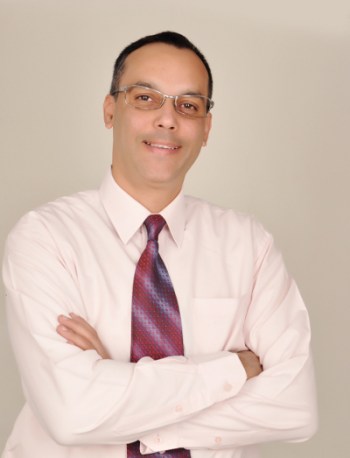
 I welcome you Prashant at SANGKRIT.net, please tell our netizens about yourself.
I used to be a very shy student and hated public speaking. I had great fear of elocution and had stage fright. I was very hesitant when dealing with the opposite sex and had few friends. However, in my second year of college my mother enrolled me in the prestigious Nazareth’s Speakers Academy, Mumbai, where I excelled due to the excellent training and guidance of the trainers and obtained a First Prize Diploma in Public Speaking. I then did my B.com from the Sydenham College, Mumbai. Upon completion of my Masters in Hospitality Management from the University of Massachusetts, USA, I returned to India to be part of the Indian post-liberalization story. Exciting times! My first job with the Taj Group of Hotels as Lobby Manager, which made me realize the disparity between the soft skills of the average Indian vis-a-vis the people in the West. This is because our education system is text book based on rote learning, whereas the education in the USA was so much more practical and presentation based. That’s why we Indians lack soft skills, especially public speaking skills.
I predicted that this lack of communication skills, specifically- speaking skills would be a great hindrance to the employability of our Indian graduates and soon founded a company called The Winners Group in 1996, a personality development training company. This laid the foundation for what today is known as First Personality. I conducted my first training program over seventeen years ago when I was invited by the New Delhi YMCA to lead a course of Public Speaking and Effective Communication. The Times of India too has recognised this achievement.
With over 18 years experience as an edupreneur, facilitator, master of ceremonies and motivator, I have extensive expertise in mentoring leaders, inspiring professionals and helping people realize their true potential.
Recognizing that individuals of all ages in Tier II, III and IV cities around the country have no options to develop their soft skills or access to good training, I am currently setting up a chain of affordable, high quality soft skills training centres for the masses around the country, the first of which opened in Kanpur in July 2013. Currently we have centres in Gurgaon, Kanpur and Meerut and more franchised centres are in the offing.
Tell us more about firstpersonality.com? How it works?
We believe that the ability to impress and influence others is not in-born. This ability can be acquired by developing soft skills which are the foundation for Personality Development. Softs kills like all skills are imparted by us through our organized training coupled with practice. No boring theory! No wasted time. Our proven training modules coupled with practice will enable you to develop a dynamic Personality. You will learn to influence others with ease, confidence and poise. It doesn’t matter which language you are comfortable with. In our programs, people from all vocations and all ages can be trained to acquire soft skills in any setting: whether academic, social or professional. What you learn, you apply immediately, and keep for Life ! It’s a fact that soft skills contribute 85% to a person’s success. Technical skills contribute only 15%! We help you acquire these all-important soft skills to positively change your life!
How masses can join-in your training program?
We have programs for everyone and everybody. But instead of a `one-size-fits-all’ approach, we have specialized, structured, short term courses which are customized for each target market and segment. This ensures that the programs are relevant without wastage of time or money. Our programs are:
| Program Name |
Nature |
Target Group |
| Life Success -Main |
Advance |
Personality Development Program: Age 17-22 years |
| Life Success -Foundation |
Basic |
Personality Development Program: Age 17-22 years |
| Campus Champ |
Employability – College Program |
Graduates |
| First Step-Little Champs |
School Program |
Class I to V |
| First Step-Young Dynamos |
School Program |
Class VI to VIII |
| First Step-Seniors |
School Program |
Class IX to XII |
| Super Step- Little Champs |
After School Program |
Class I to V |
| Super Step- Young Dynamos |
After School Program |
Class VI to VIII |
| Super Step- Seniors |
After School Program |
Class IX to XII |
| Winners Camp- Little Champs |
Vacation Program |
Class I to V |
| Winners Camp- Young Dynamos |
Vacation Program |
Class VI to VIII |
| Winners Camp- Seniors |
Vacation Program |
Class IX to XII |
| Pinnacle Corporate-First |
Corporate Training |
Junior Executives |
| Pinnacle Corporate-Pro |
Corporate Training |
Managers |
| Pinnacle Corporate-Board |
Corporate Training |
Senior Managers |
| First Achiever |
Corporate Training |
Employers & Entrepreneurs |
| Perfect Diva |
Finishing School |
Ladies & Housewives |
| Platinum Alliance |
Finishing School |
Prospective brides & bridegrooms |
| English First-Basic |
English – Basic |
Anyone |
| English First-Intermediate |
English – Intermediate |
Anyone |
| English First-Advanced |
English – Advance |
Anyone |
| Speak Easy |
Public Speaking |
Anyone |
|
|
|
How did you come with its concept? How exactly your idea sparked to register firstpersonality.com and what is the story behind your domain name?
Currently, anyone wishing to improve their soft skills has no choice. They end up going to the sub-standard neighbourhood English speaking institutes who fleece them giving them false promises. Neither their English improves nor their personalities. That’s when I realized that there was a need to bring organized, good quality soft skills training to the masses, which they could use to get ahead in their lives. Courses that people of similar age groups and experiences could take together in a fun-filled, interactive environment by experienced, trained faculty.
We wanted a name that accurately represented the hopes and aspirations of our target audience. Everyone wants to have a dynamic Personality that helps them get ahead and come First in life. Hence First Personality…
How many people got associated for working together on this project?
We take pride in the quality of our instruction and trainers !!! Our faculty and board of Trainers are mentors rather than teachers. These are people that students look upto as role models and consist only of people with at least 7 years+ work experience, corporate professionals and experienced entrepreneurs, armed forces young retirees and academic professionals. Only experts with impeccable spoken English and voice accent skills are chosen, as we believe in Training by Example. Every course has a faculty evaluation done by the participants and we take this evaluation very , very seriously.
How it will improve people’s lives?
Our Mission: First Personality aims to be the number one Personality Development Training Company in India by creating a vast pool of individuals equipped with the soft skills to face the challenges of a globalized economy. These soft skills will enable individuals to succeed by attaining multi-dimensional personalities and acquire life skills to better their lives and their professional careers.
What philosophy drives you doing this?
Our vision: We help people become confident personalities and leaders in their lives, by imparting the best Personality Development Training. We wish to build brand equity by imparting relevant, fun and real world training, so that the ultimate objective of franchising for a profit for all stakeholders can be realized.
What makes your endeavours unique?
At First Personality, our endeavour is simple. To impart corporate-level personality development training to the masses at prices they can afford. To bring soft skills to people who need it most, but don’t have access to corporate training or expensive trainers. Every First Personality centre will be standardized, have the same curriculum, same high quality of experienced faculty, and affordable, corporate level training facilities for students.
We have identified and tested the basic attributes and qualities of a successful personality. We have taken these and formulated a Personal Development Compass, which is used as a guide by the students in their path to leadership and success.
No boring theory! No wasted time! We believe that the training should affect the participant in such a way that it should not appear artificial or `put on’. That’s why we follow the LIFE model i.e. `Learning- Internalization-Feedback-Evaluation’ model, where the qualities and benefits obtained from the programs become part of the person’s basic nature.
Our Training is different from conventional language courses as it works on the assumption that:
- All individuals have certain qualities wherein they can be trained to increase their Soft- verbal and non-verbal communication skills.
- Learning is more successful in an experiential format rather than the `chalk and talk’ –teacherstudent traditional method.
- In this digital age, people are often working and living alone –in relative isolation. For e.g.. migrating away from their homes in search of better job opportunities elsewhere. When given an interactive training experience-whether Outdoor or In-class , a sense of adventure achievement, trust building & bonding develops. This leads to increased motivation and learning.
- Our training enables people to have shared experiences that serve as important catalyst in their self-discovery process.
- We have proven that significant, long-lasting learning can be achieved through an intensive, short-term experience.
How other netizens can help you in this regard ?
As education moves on-line and more and more people looking to the net for easy access, First Personality is also ready for the on-line instruction of their programs. The best part is that these soft skills are required by everyone, all age groups, across the world! That’s where our Indian and overseas franchisee based expansion plans fit in. We are looking to open Personality Development and Soft Skill centres all over and are looking for franchisee and expansion partnerships. We currently have centres in Gurgaon, Kanpur and Baroda (just opened). Meerut has been signed up and is scheduled to open within the next month.
Any future plans? Are you working on some other projects also ?
We have envisioned our future projects as Vision 2015:
Ø To have our courses authorized & certified by a reputed University in India. The process has already been initiated.
Ø To launch several job oriented programs that are more relevant to the industry demands & help promise 100% placements.
Ø To collaborate with agencies like NSDC and contribute in the skills development mission of India.
What is your ultimate message for netizens?
It’s never too late for self improvement. Whatever you do, whatever your age is, don’t feel the time has passed to learn something new, to do something you have not done before. Each day is a new day and those who don’t spend at least 1 hour on self improvement and self help every day will left behind.